
Template - My Book Notes template
This example creates a new book note from a template and fills in a book’s highlights straight from Readwise. When you run it, you pick a book, and QuickAdd builds a note whose body already contains that book’s highlights and notes.
Before you start
Section titled “Before you start”- A Readwise account and its access token. Get your token here.
Installation
Section titled “Installation”Imported the package above? The script, the Readwise macro, the template and the Add Book Notes choice are already in place. Save your access token as described under After importing in the card, then skip to the notes on how it behaves.
New to user scripts? See how to add a script to a macro.
- Download the Readwise script and save it in your vault.
- Create the macro that runs the script: in Settings → QuickAdd, click New choice → Macro. The Macro Builder opens; click its name at the top to rename it (I use
Readwise). See the Macro choice docs for a full walkthrough. - In the builder, add a User Script command: type the name of the script you saved (or click Browse) and click Add.
- Click the cog on the script’s step, paste your token into Readwise access token, and click the save icon next to it. QuickAdd keeps it in Obsidian’s secret storage, not in
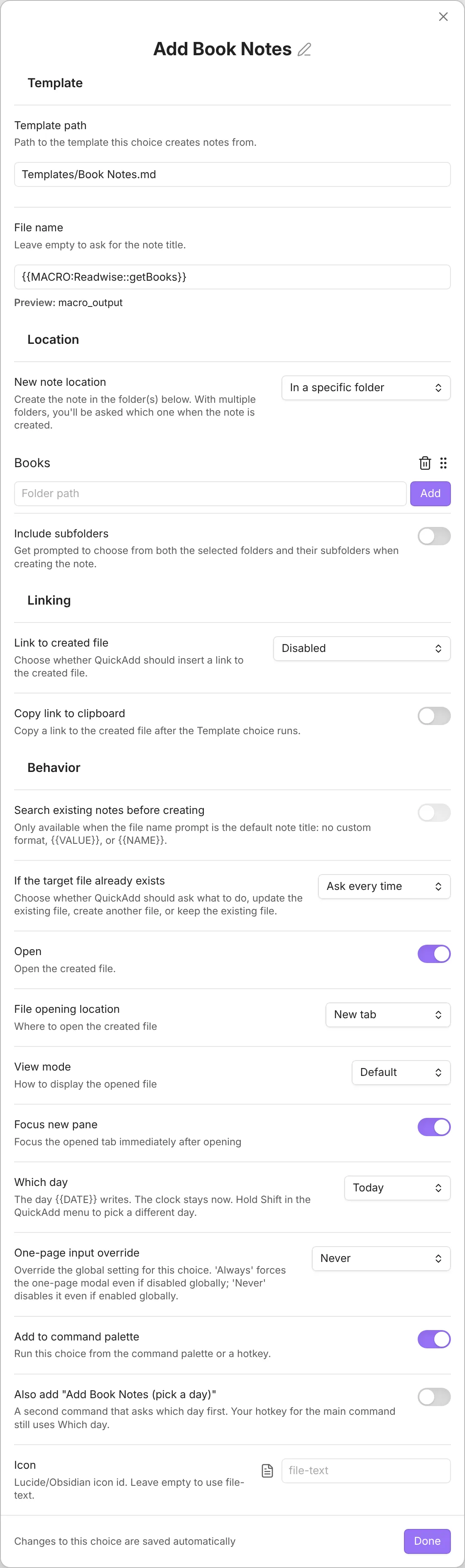
data.json. - Create a Template choice whose Template path points at the template you made from the one below. Set File name to
{{MACRO:Readwise::getBooks}}(before QuickAdd 2.30.0, this is File name format; turn its toggle on first), so the note is named after the book you pick. Set the remaining options to your liking. The screenshot shows the packaged choice:
A few notes on how it behaves:
- The note is named after the book you select, minus what a file name can’t hold:
Dune: Part OnebecomesDune - Part One. The alias keeps the real title. - Running the choice opens a menu to choose a book, and the highlights are appended into the template where the macro placeholder sits.
- Customize the template however you like, but keep
{{MACRO:Readwise::instaFetchBook}}- that placeholder is what fetches the highlights and marks where they are inserted. If you named your macro something other thanReadwise, replaceReadwisein that placeholder with your macro’s name. - The script fills in
{{VALUE:author}}and{{VALUE:Book Title}}from the book you pick. If you use one-page input, set One-page input override to Never on the Add Book Notes choice (the package already does), or the form asks you for them before the script has a chance to.
Script

Section titled “Script”Most of the setup is shown in the gif.
The script is the Readwise script from step 1; open it to read or adapt it.
Template
Section titled “Template”---image:tags: in/booksaliases: - "{{VALUE:Book Title}}"cssclass:---
# Title: [[{{TITLE}}]]
## Metadata
Tags::Type:: [[Book]]Author:: {{VALUE:author}}Reference::Rating::Reviewed Date:: [[{{DATE:YYYY-MM-DD - ddd MMM D}}]]Finished Year:: [[{{DATE:YYYY}}]]
# Thoughts
# Actions Taken / Changes
# Summary of Key Points
# Highlights & Notes
{{MACRO:Readwise::instaFetchBook}}